
Add Blueprint to theme
This walkthrough shows how to add Blueprint to your Shopify theme by inserting the app’s theme blocks in the Theme editor, then adjusting the settings in the right-hand panel.
Open the theme editor
In Shopify admin, open Online Store → Themes.
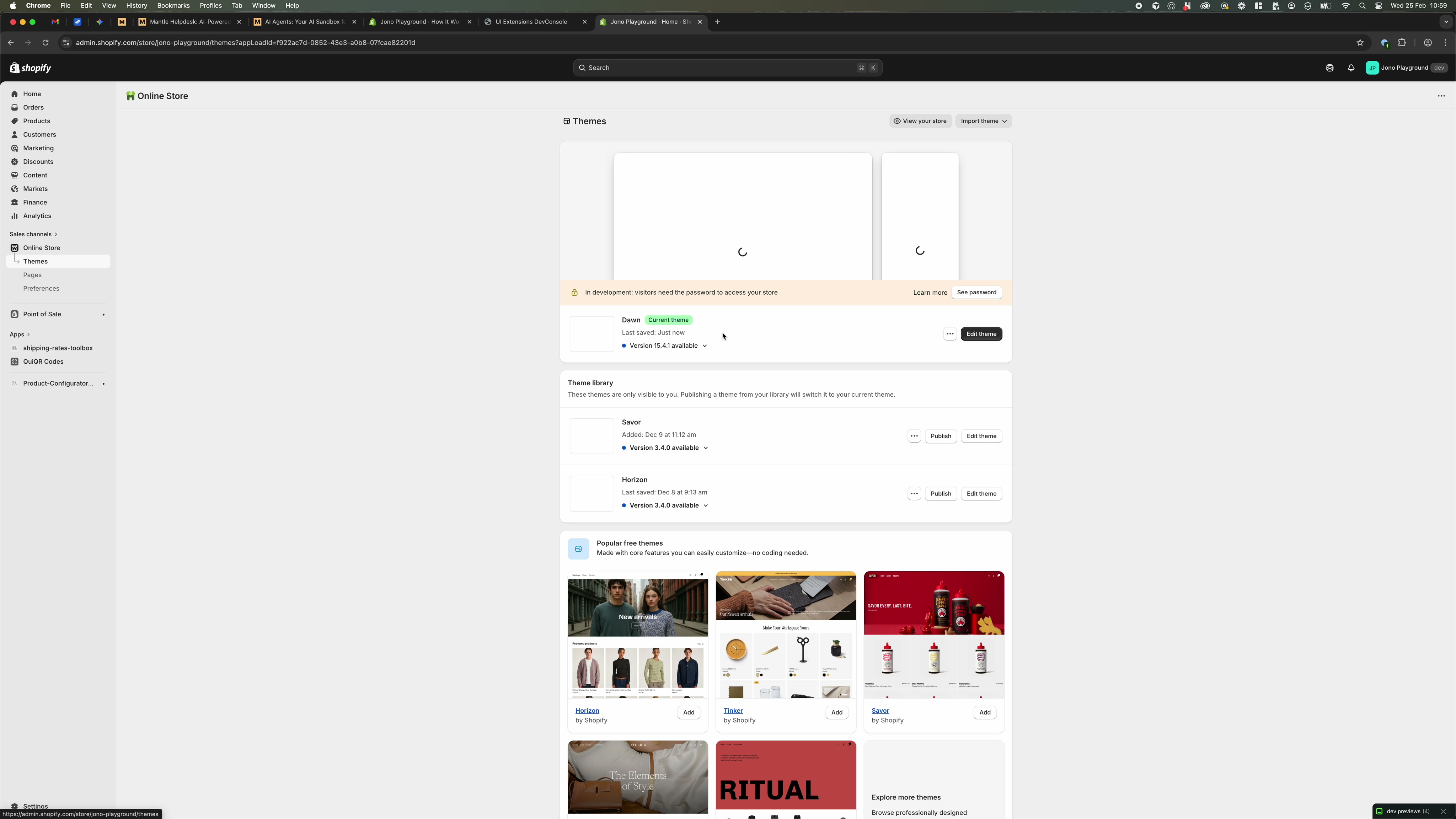
On your current theme (for example, Dawn), click Edit theme.
In the Theme editor, use the page selector at the top (for example, Home page) to jump to the template you want to update.
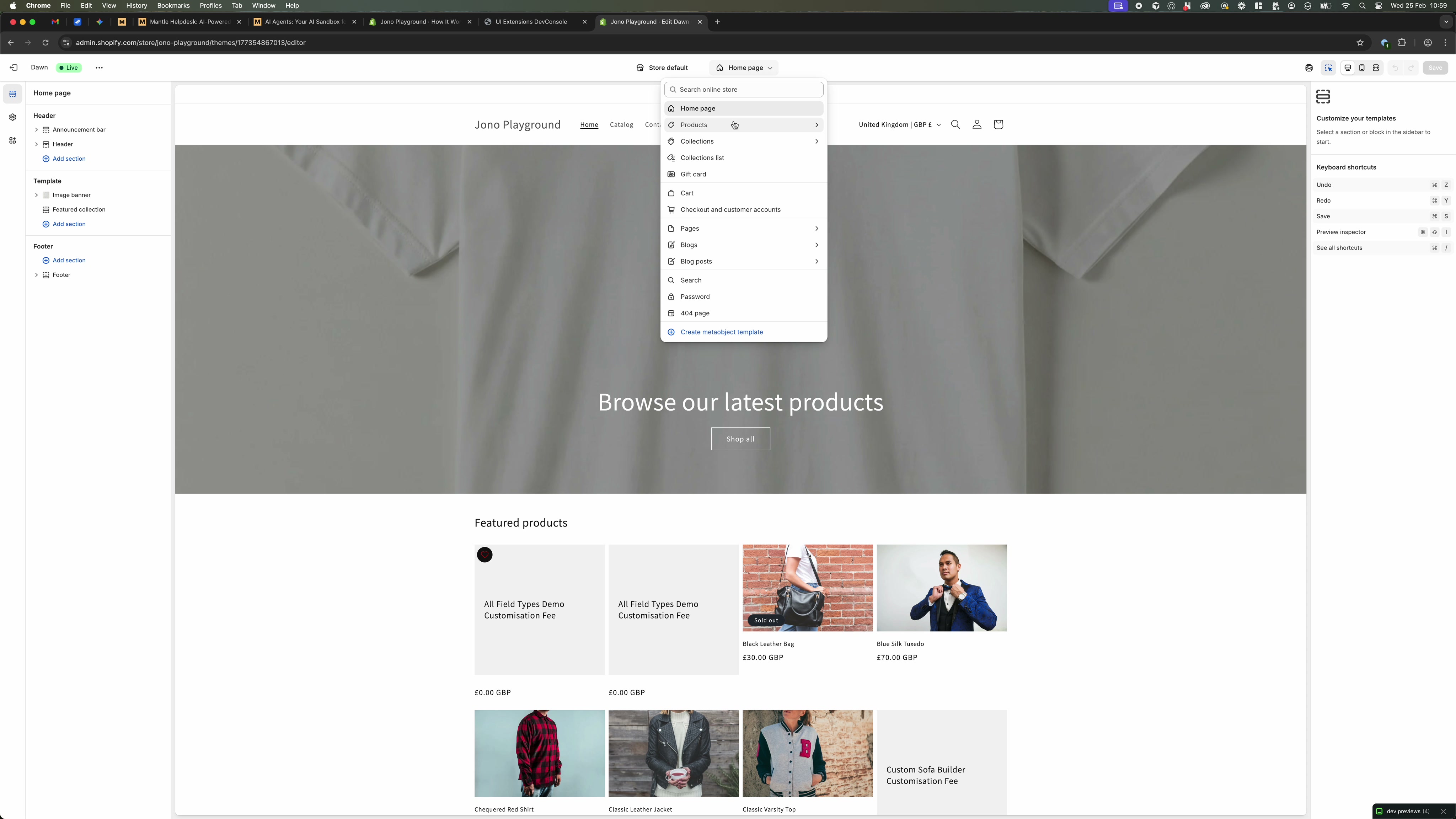
For Blueprint on product pages, switch to a product template (for example, Products → Default product).
Add the Blueprint block to a product page
In the Theme editor, navigate to the product template where you want Blueprint to appear (for example, Default product).
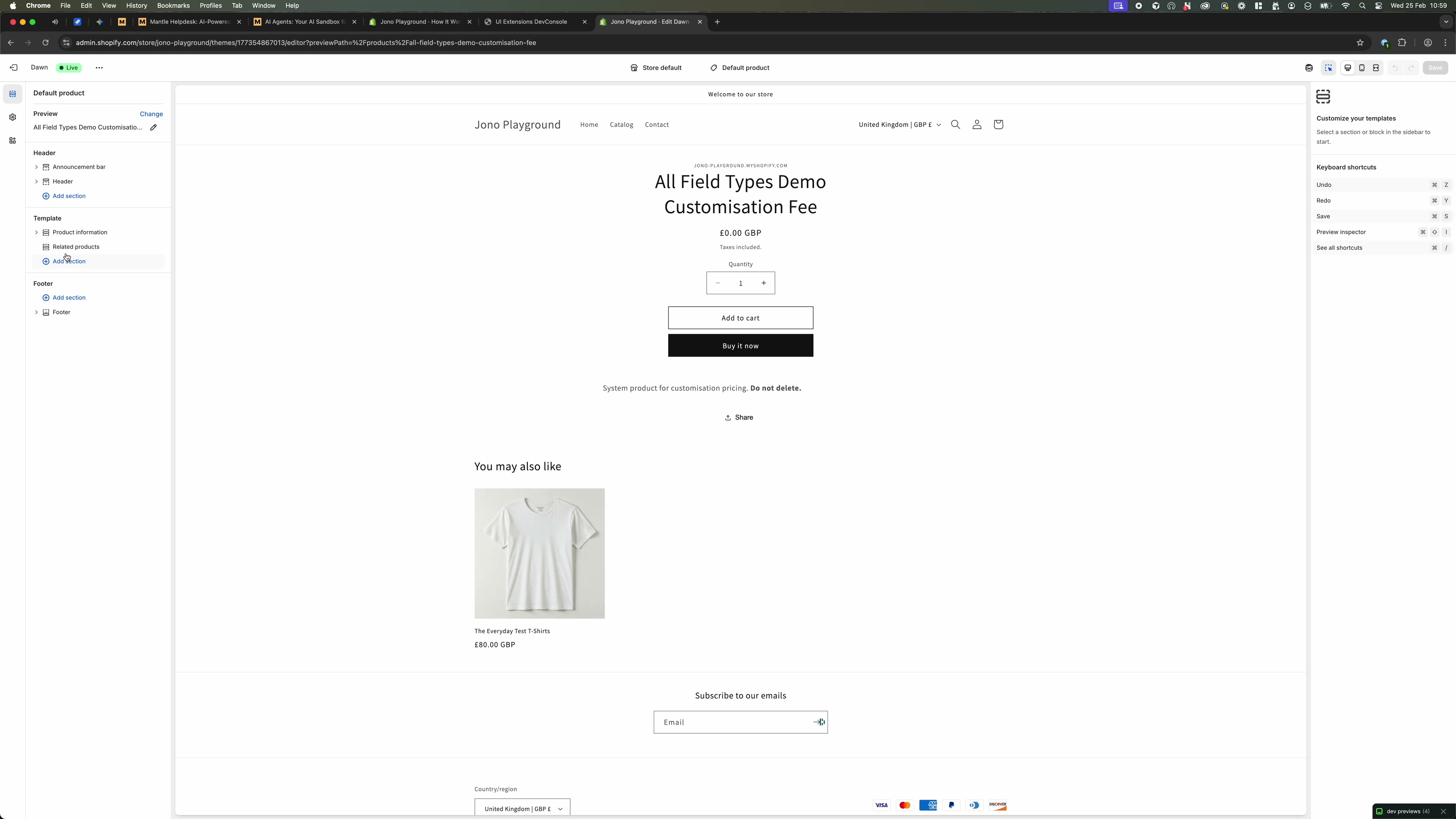
In the left sidebar, find the area where you want the Blueprint UI to appear (commonly within Product information).
- Click Add block.
- Under Apps, choose the Blueprint block you need (for example, Product Configurator).
Once added, the block appears in the sidebar list (for example, Product Configurator).
Click the Blueprint block in the left sidebar (for example, Product Configurator) to open its settings in the right-hand panel.
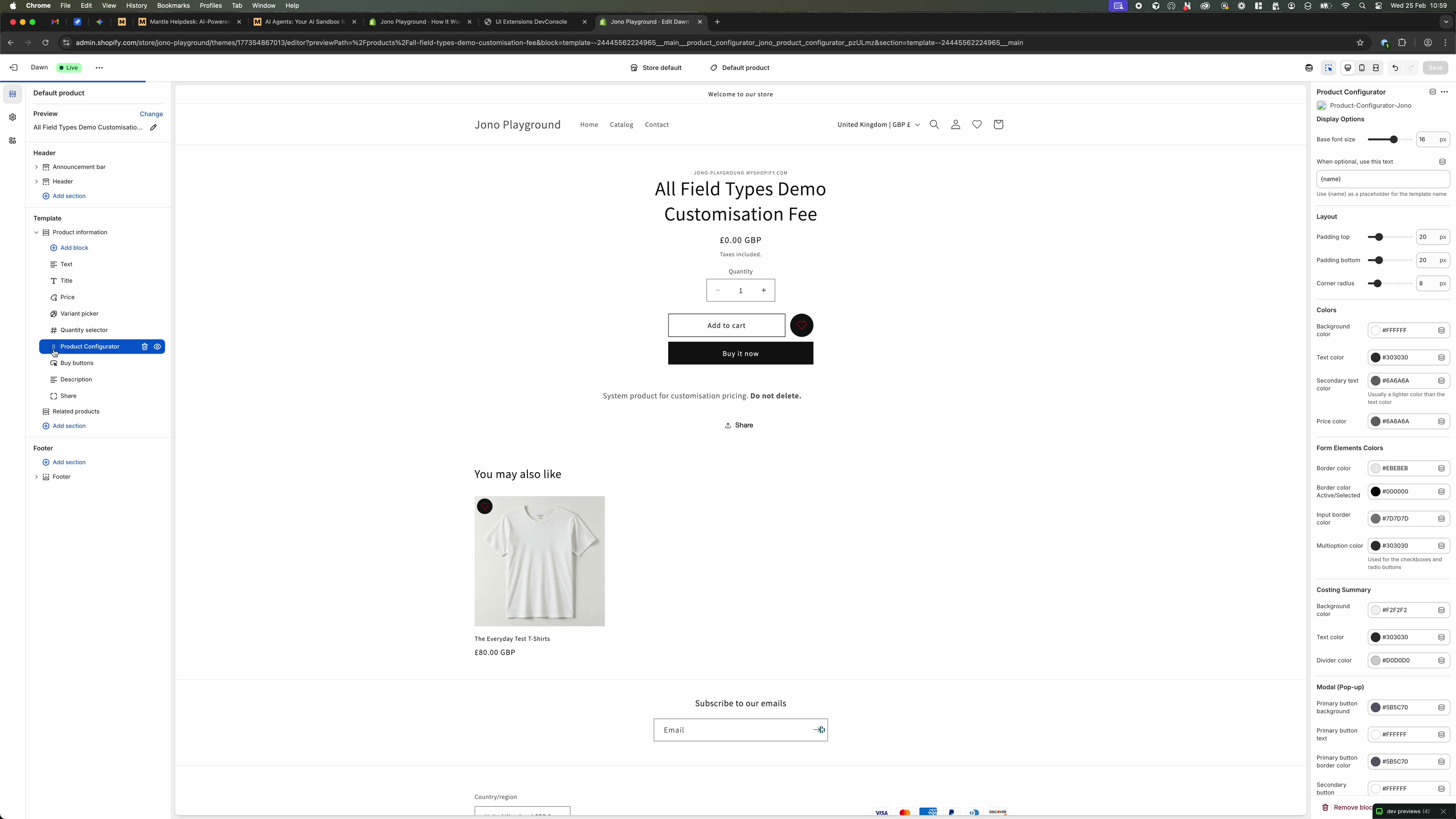
Use the available options to match your theme styling (for example, Display Options, Layout, and Colors such as background and text color).
(Optional) Add Blueprint to another template (e.g., home page)
Use the page selector to switch to another template (for example, Home page).
In the left sidebar, click Add section or Add block (depending on where you want Blueprint to appear).
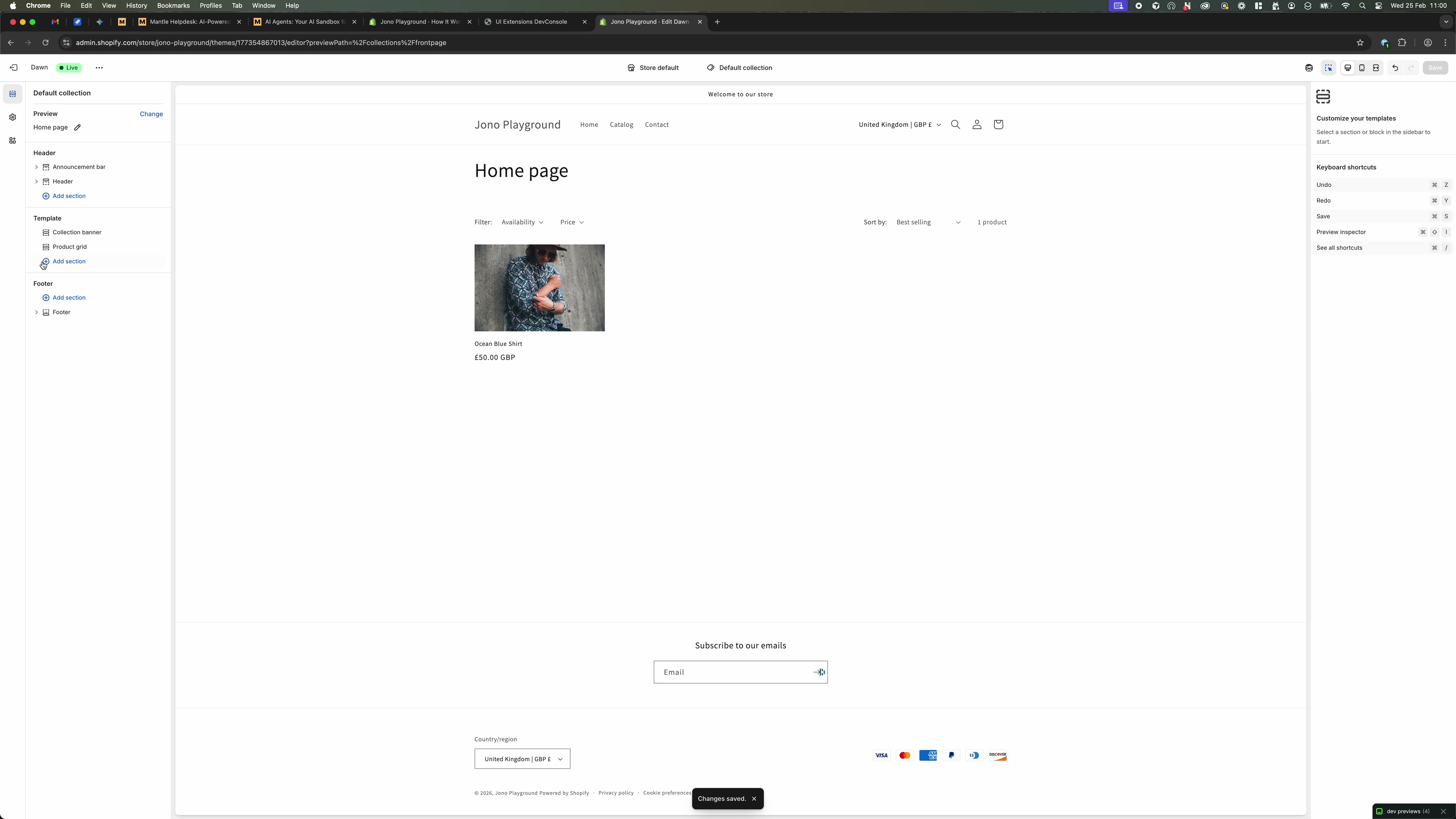
Under Apps, select the Blueprint option you want (for example, Hide Add to Cart).
Select the newly-added Blueprint item in the left sidebar to view its settings in the right-hand panel.
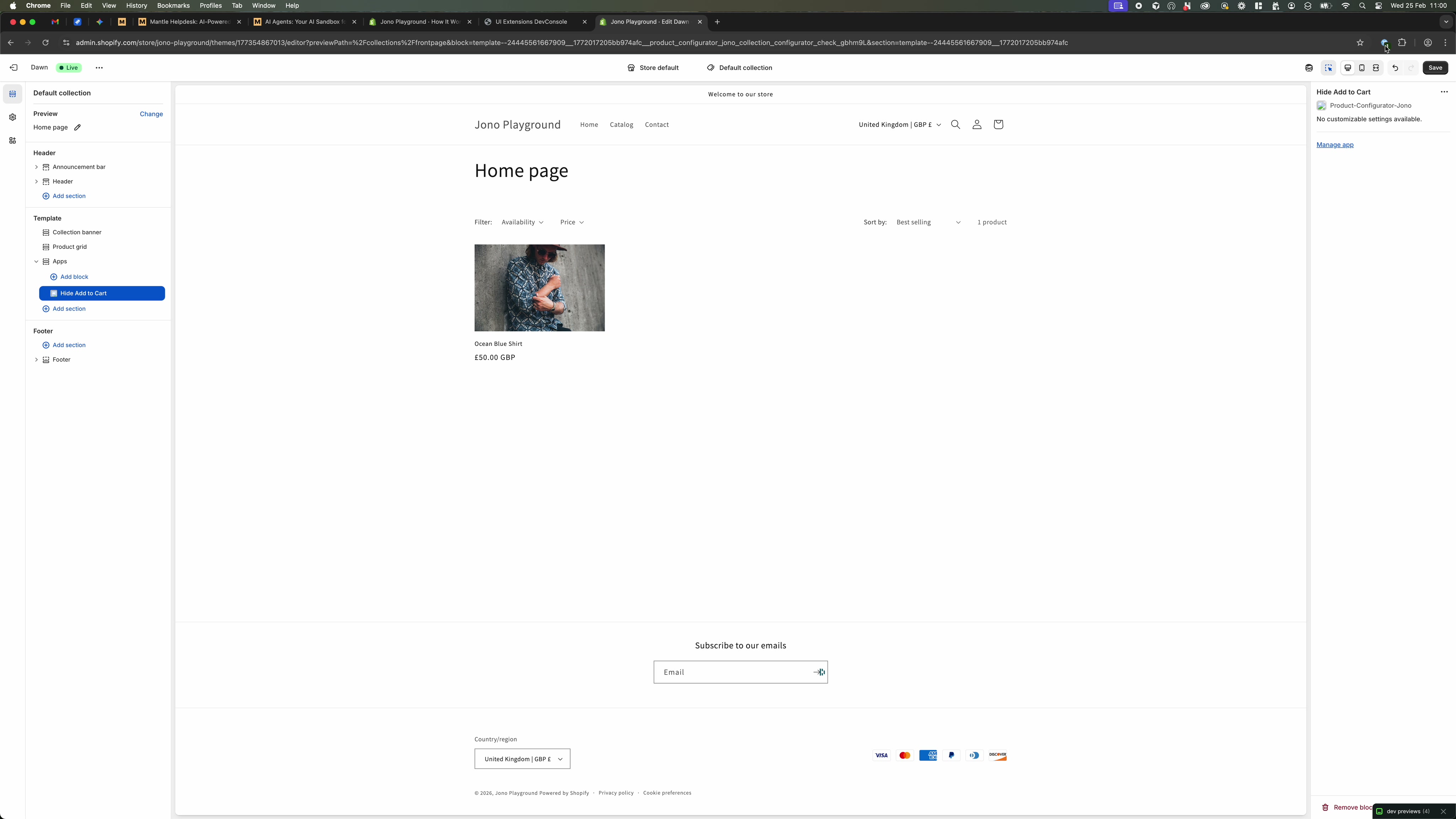
If the panel shows No customizable settings available, the block works automatically once added. Use Manage app if you need to adjust app-level configuration.
Save and verify on your storefront
- Click Save in the top-right of the Theme editor after changes.
- Preview the storefront to confirm the Blueprint experience appears on the intended pages and templates.