
How to show Blueprint customisation options on packing slips
Show Blueprint customisation on packing slips
If you use Blueprint personalisation templates, the choices a customer makes are saved with the order and can be shown on Shopify’s native packing slips.
This FAQ explains how to update your packing slip template in Shopify so Blueprint product options appear under each ordered item as a bulleted list.
This only works with Shopify’s native packing slip functionality in Settings > Shipping and delivery > Documents > Templates.
In Blueprint, customer selections come from your personalisation template and its product options. On the order, Shopify stores those selections as line item properties.
Quick answer
To show Blueprint selections on packing slips, edit the Shopify packing slip template and add the code snippet below the line of code that outputs the line_item.title or the line_item.variant_title.
Where do I make this change?
In your Shopify admin, go to Settings > Shipping and delivery > Documents.
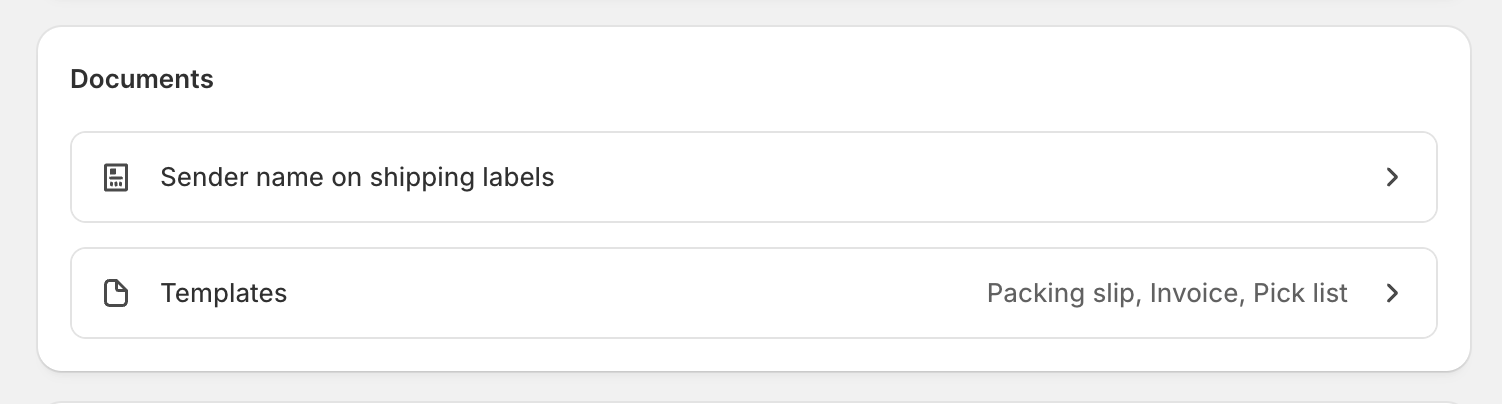
Click Templates.
Select the document template you want to update. In most cases, this will be your Packing slip template.
In the template code, find the line that outputs either {{ line_item.title }} or {{ line_item.variant_title }}.
You will usually want to place the Blueprint output directly underneath that line so the customisation appears below each product name on the printed packing slip.
Add the following code below the product title or variant title:
{% if line_item.properties != empty %}
  <ul style="margin-top: 5px; margin-bottom: 5px; padding-left: 15px; font-size: 0.9em;">
    {% for property in line_item.properties %}
      {% assign first_character = property.first | slice: 0 %}
      {% if property.last != blank and first_character != '_' %}
        <li><strong>{{ property.first }}:</strong> {{ property.last }}</li>
      {% endif %}
    {% endfor %}
  </ul>
{% endif %}
Save the template, then test with an order that includes a product using a Blueprint personalisation template.
On the packing slip, Shopify should now print the selected Blueprint options as a list under the item.
What will this show?
This code loops through the order’s line item properties and prints each visible Blueprint selection, for example:
Fabric: Leather
Feet Material: Oak
Arm Style: Flat
Embroidery text: Olivia
This makes it easier for fulfilment staff to see the customer’s Blueprint customisation when picking, packing, or checking orders.
Why does the code ignore some properties?
The code only prints properties that contain a value, so empty fields do not clutter the packing slip.
Some line item properties are used internally and should not be shown to customers or warehouse staff. The code checks the first character of the property name and ignores values that start with _.
Frequently asked questions
It works for Blueprint templates where the customer’s selections are saved to the Shopify order as line item properties. This includes common Blueprint setups such as dropdown choices, checkboxes, text fields, and other product options used in a personalisation template.
Usually no. If your Blueprint template is already collecting customer input and that input appears on the order, you only need to update the Shopify packing slip template.
In Blueprint, these selections come from your Templates area and the Product Options inside each template.
Paste it directly below the part of the template that prints {{ line_item.title }} or {{ line_item.variant_title }}. That keeps each Blueprint customisation grouped under the correct product on the packing slip.
Yes. If Shopify gives you editable templates for other documents, you can use the same approach anywhere you want line item properties to be printed.
Check these points:
The ordered product must use a Blueprint personalisation template.
The customer must have completed one or more Blueprint product options.
The Shopify template must contain the properties code in the correct place.
You must be testing with an order that actually contains Blueprint selections.
Yes, slightly. The code prints the Blueprint selections as a small bulleted list under the item name. The inline styling keeps the spacing compact for printed documents.
Best practices
Use clear Blueprint option names so the packing slip is easy for staff to read.
Test with a real sample order before using the updated packing slip in daily fulfilment.
Keep the code directly under the product title so each customisation stays attached to the correct line item.
If you use longer text fields in Blueprint, review how they appear on printed slips so they do not make the document too crowded.
If you want cleaner packing slips, make sure your Blueprint product option labels are written in plain language, such as Embroidery text, Thread colour, or Gift Wrap, rather than internal team shorthand.
Related Blueprint guides
Learn how Blueprint templates collect customer choices that can later appear on orders and packing slips.
See which Blueprint product options can be used to collect selections, text, numbers, and uploads.