
Common template examples FAQ
Common template examples in Blueprint
Blueprint can be used to create any kind of personalisation template. The examples below are just common use cases to help you get started. In the app, go to Templates to open an existing template or click Create Template to build a new one.
These examples are starting points, not limits. You can use Blueprint for simple add-ons, guided builders, text personalisation, file uploads, and more complex step-by-step product journeys.
FAQ
Jump to an example template:
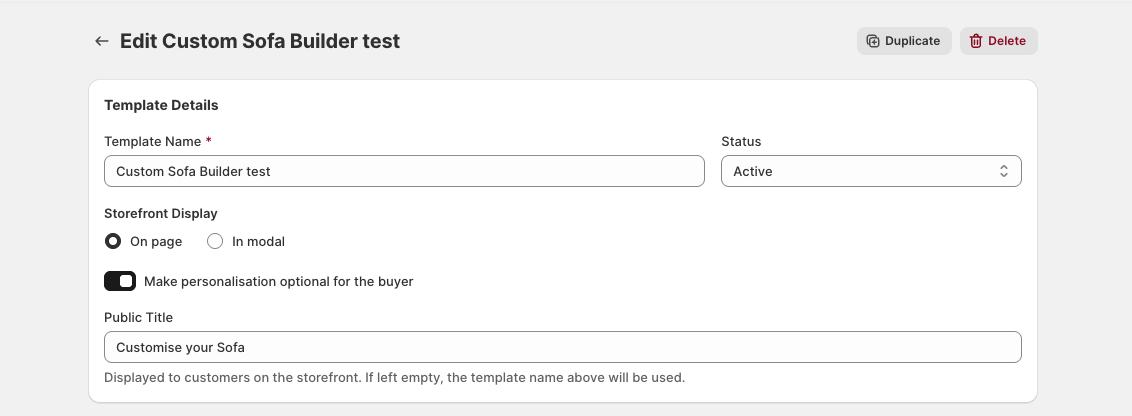
These screenshots show three very common Blueprint use cases:
Gift Wrap as a simple add-on
Custom Sofa Builder as a guided, step-by-step configuration flow
Embroidery as a text-based personalisation flow with extra pricing rules
They all use real Blueprint controls such as Storefront Display, Make personalisation optional for the buyer, Product Options, Option type, Additional price, Additional base price, and Show Price Summary.
Use Make personalisation optional for the buyer when the customer should still be able to buy the product without filling in the template.
In your examples, this makes sense for:
Gift Wrap because not every customer wants the add-on
Embroidery if the product can still be bought plain, without custom text
For the Custom Sofa Builder, leaving this off is the right setup if the buyer must complete the configuration before adding the product to cart.
If the template is optional overall, you can still make individual fields required inside it when those fields must be completed once the customer chooses to personalise.
Gift Wrap template example
The Gift Wrap example is a good starter template for a simple paid add-on.
In the screenshots, this setup uses:
Template Details with a clear public-facing label such as Gift Wrap Addition
Storefront Display set to On page, so the option appears directly on the product page
Make personalisation optional for the buyer, so customers can skip it
Checkbox (yes/no) as the Option type, which is ideal for a single on/off choice
Additional base price in Additional Price (optional) for a fixed fee
Additional price label to name the charge clearly in the basket
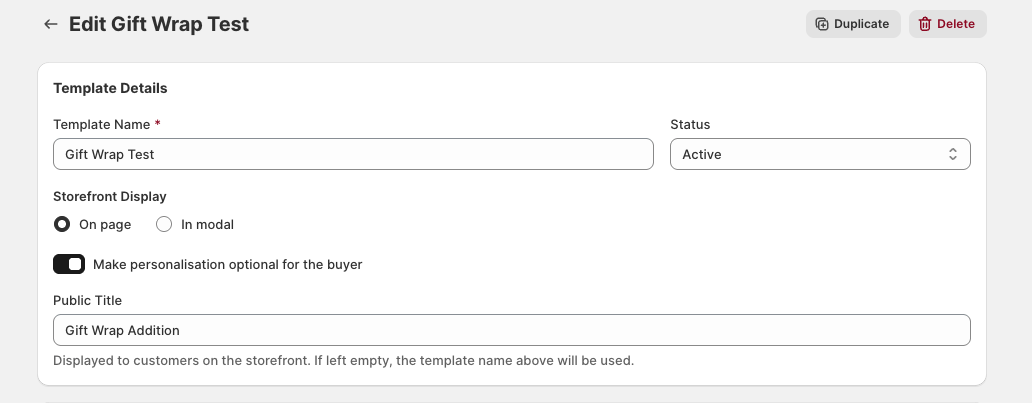


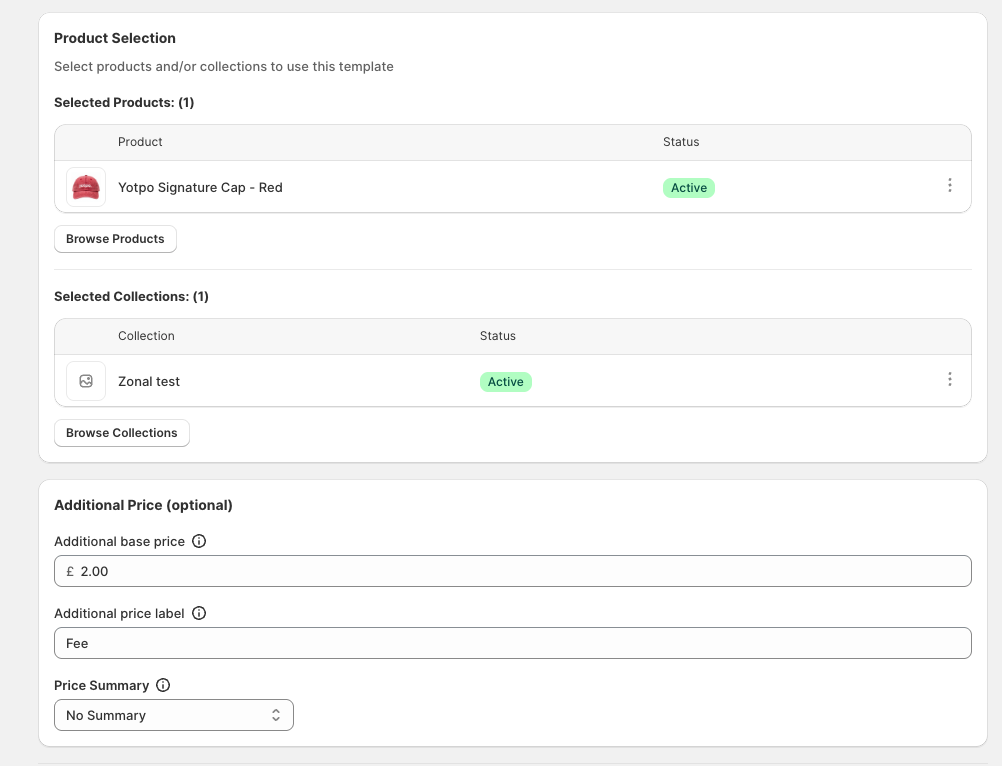
This is a common use case for extras like gift wrap, rush production, premium packaging, or proof approval.
The Gift Wrap example is a good starter template for a simple paid add-on.
It works well when customers only need a single yes-or-no choice and, if selected, a fixed extra charge is applied.
Custom Sofa Builder template example
The Custom Sofa Builder is a strong example of a more detailed configuration template where the customer should complete choices in order.
In your screenshots, this template uses:
Show options one step at a time in Product Options
Separate steps such as Step 1: Choose Fabric, Step 2: Choose Feet Material, and Step 3: Choose Arm Style
Dropdown list as the Option type for each choice
Make personalisation required for the buyer on the product options
Additional price added at option level to charge more for certain stages of the build
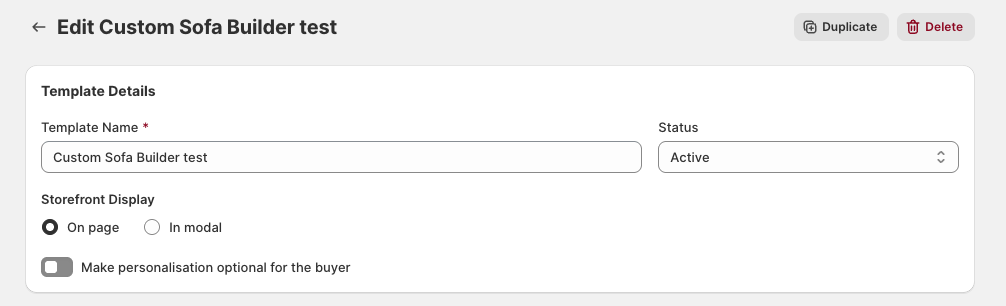
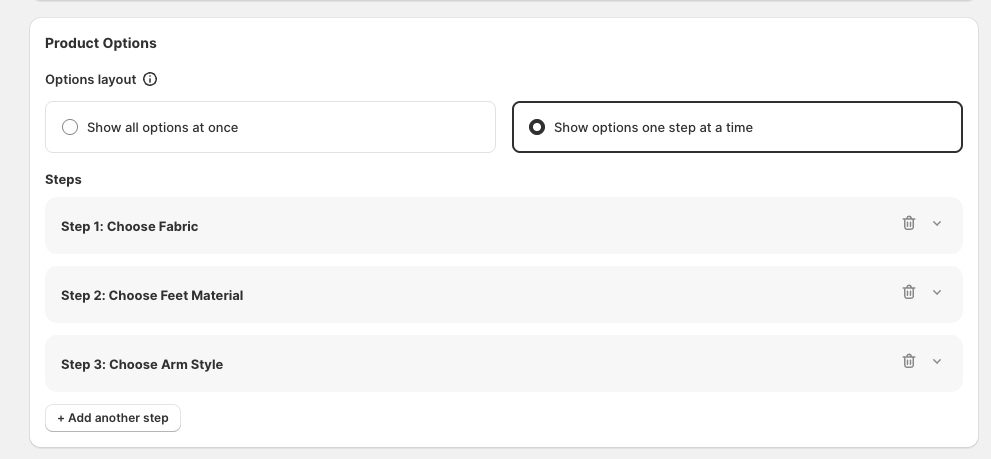
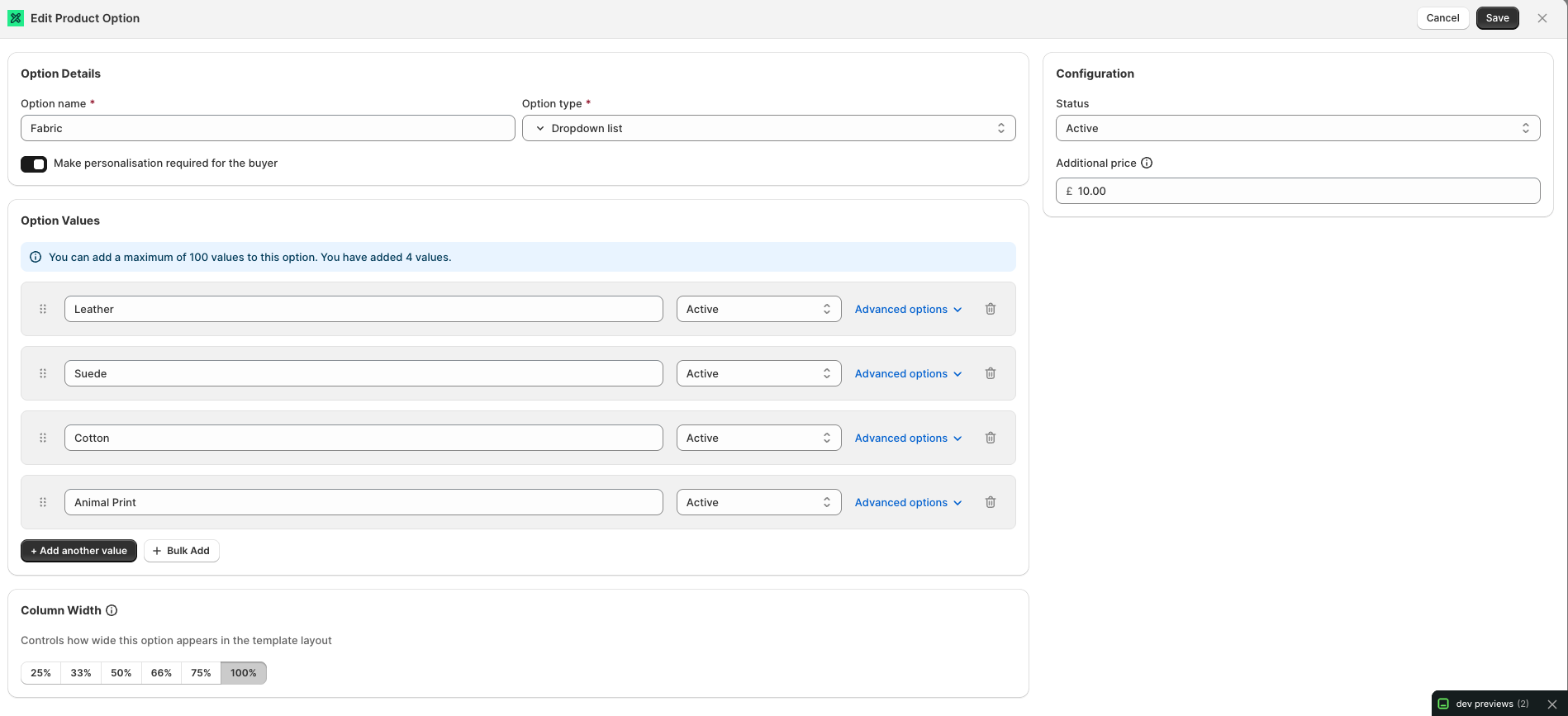
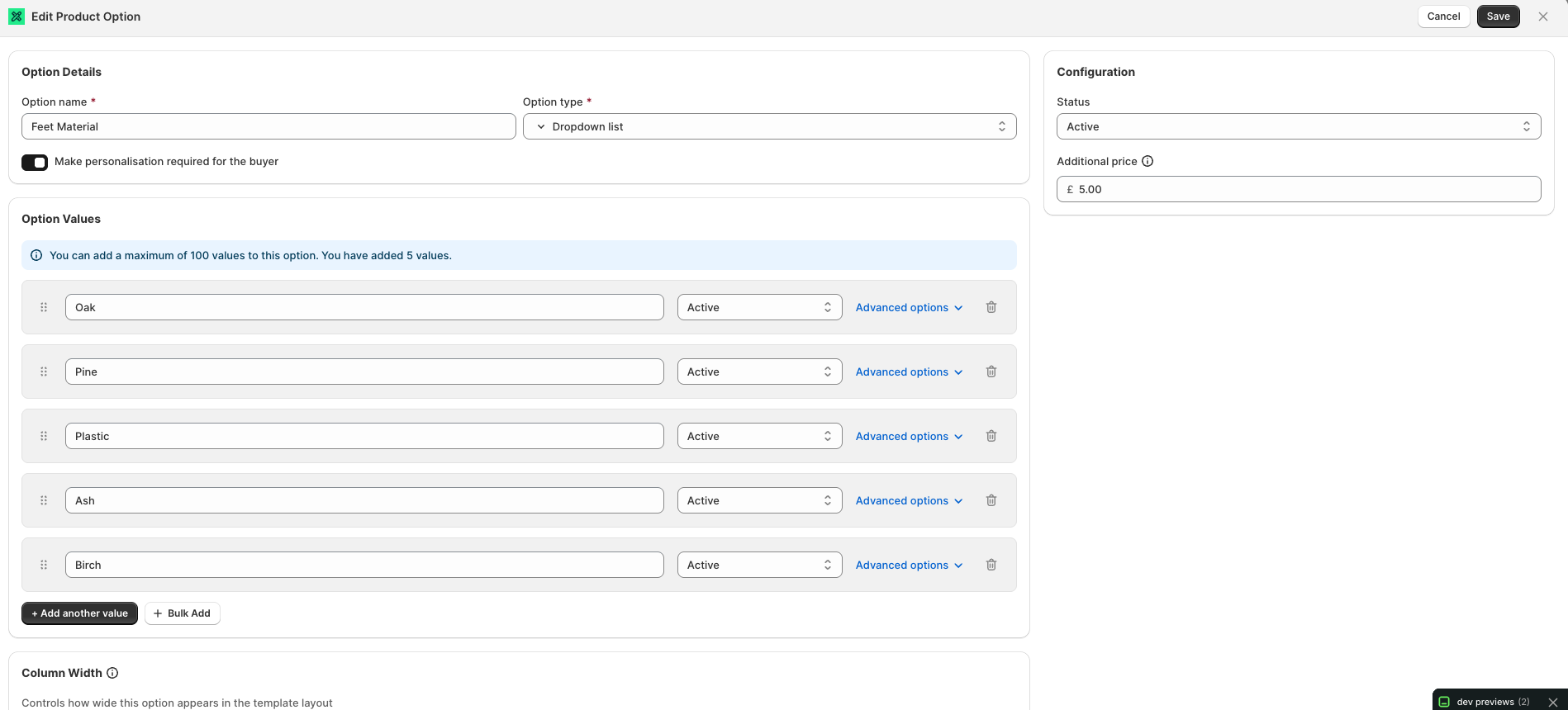
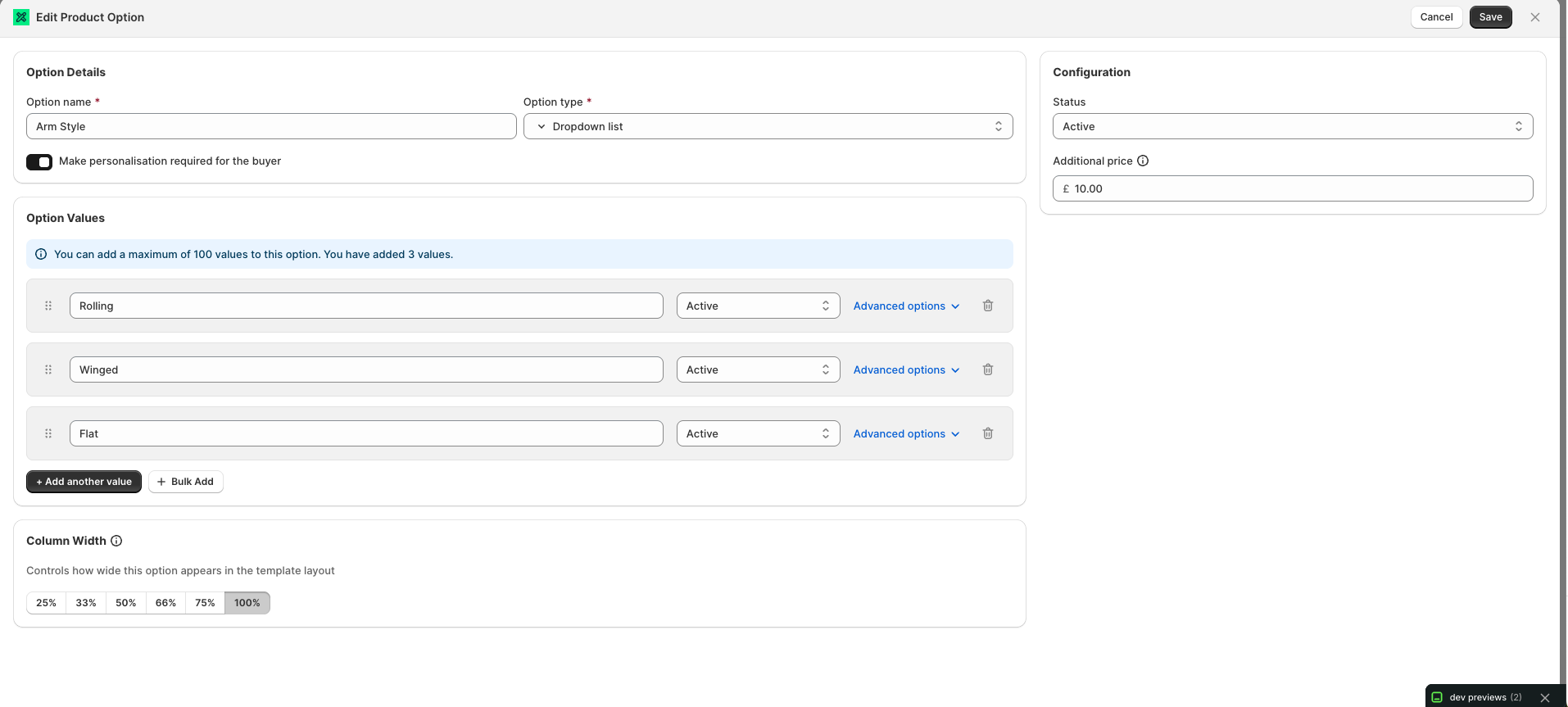
This approach is ideal when buyers need to work through several decisions in a logical order. It keeps the page cleaner than showing everything at once and is a common use case for furniture builders, bundle builders, made-to-order products, and technical product selectors.
Show options one step at a time helps when a product has several decisions that should be completed in sequence.
For a sofa builder, this means customers can focus on one area at a time, such as fabric first, then feet material, then arm style. This usually feels easier than displaying every dropdown together.
It also makes it clearer which choices are required before checkout.
Embroidery template example
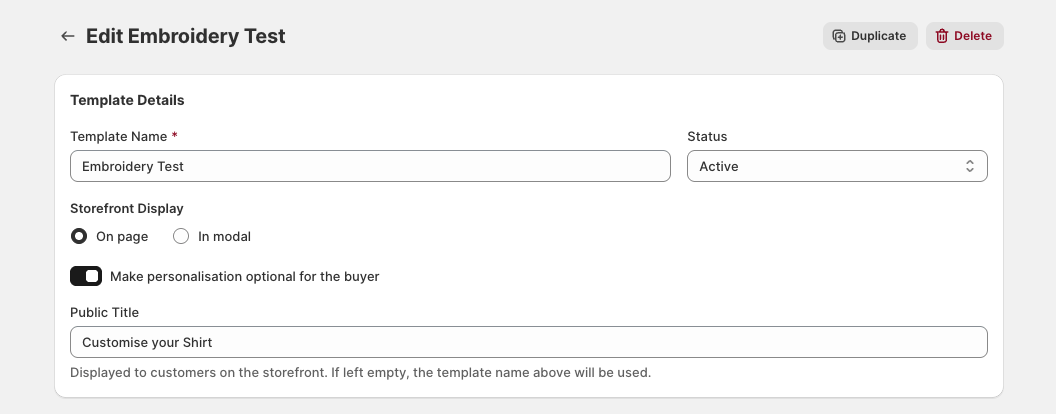
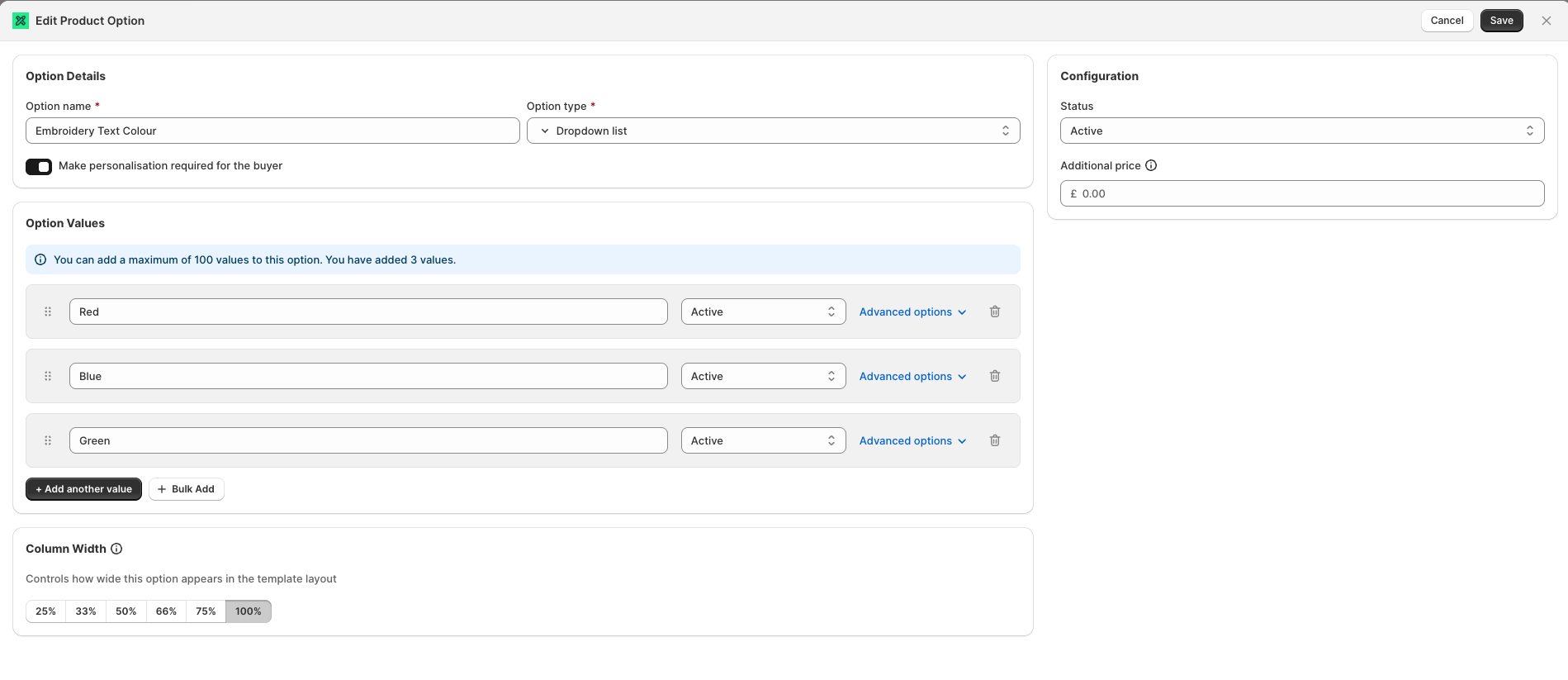
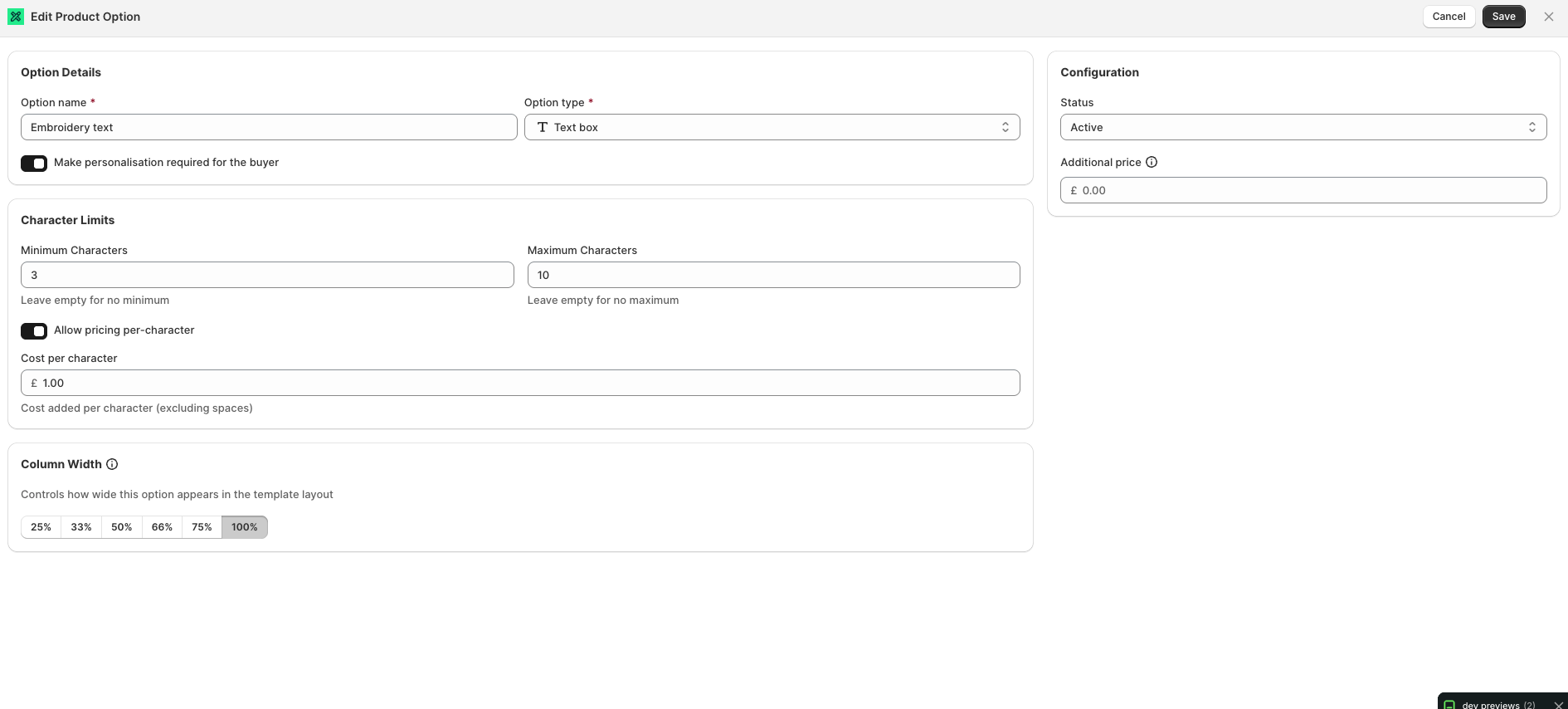
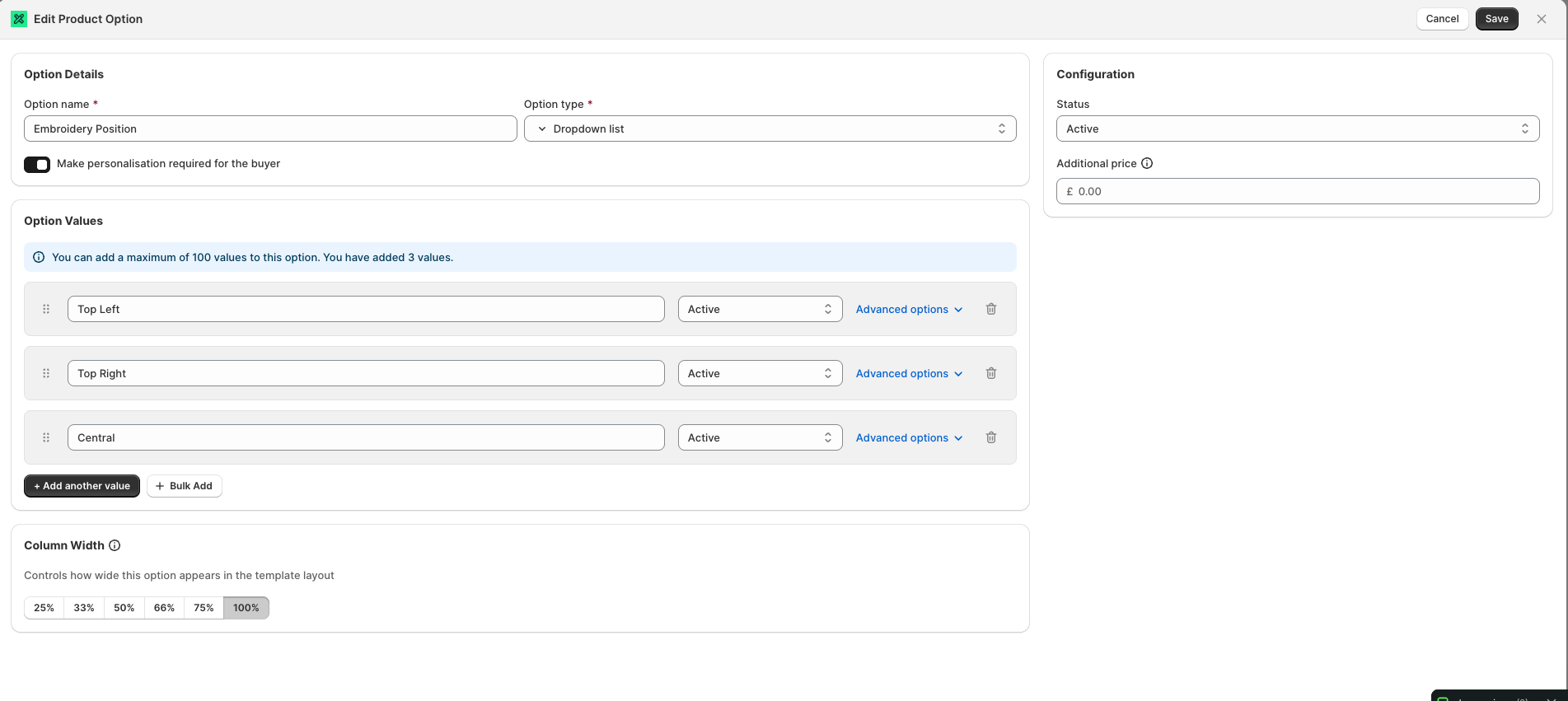
The Embroidery example shows how Blueprint can collect short text and supporting selections around that text.
In your screenshots, this template uses:
Show options one step at a time for a guided flow
A Text box option called Embroidery text
Minimum Characters and Maximum Characters to control the allowed text length
Allow pricing per-character with a Cost per character
Dropdown lists for Embroidery Text Colour and Embroidery Position
The template-level setting Make personalisation optional for the buyer, if embroidery is an extra rather than a required part of the product
This is a common use case for embroidery, engraving, monogramming, printed names, and any short-text personalisation.
If you enable Allow pricing per-character on a Text box option, Blueprint can add a charge based on how many characters the buyer enters.
In your example, the Cost per character is used for embroidery text. This is useful when longer text takes more time, thread, space, or production effort.
The screenshot also shows that the cost is added per character (excluding spaces), which helps keep the pricing more consistent.
Per-character pricing works best when you also set sensible Minimum Characters and Maximum Characters, so customers know the allowed text length before they enter it.
Blueprint lets you price templates in more than one way:
Template-level pricing is set in Additional Price (optional) using Additional base price. This adds a fixed charge to the template as a whole.
Option-level pricing is set on an individual product option using Additional price. This is useful when a particular choice adds cost.
Per-character pricing is available on supported text options and charges based on text length.
Using your examples:
Gift Wrap is a strong fit for a fixed template-level fee
Custom Sofa Builder is a strong fit for option-level pricing on steps like fabric, feet material, or arm style
Embroidery is a strong fit for per-character pricing on the text itself
Yes. In step-based templates, you can add priced options inside each step.
For example, in the sofa builder screenshots, each dropdown option screen includes an Additional price field. That lets you charge for the selection being made in that part of the journey.
This is useful when different materials, finishes, or build choices increase the final price.
If you use template-level pricing and option-level pricing together, test the finished product page carefully so the total price stays clear and expected.
Your screenshots show common Blueprint option types in real use:
Checkbox (yes/no) for Gift Wrap
Dropdown list for sofa choices such as fabric, feet material, and arm style
Text box for embroidery text
Dropdown list again for embroidery colour and position
Blueprint also supports other option types such as Checkboxes (multi-select), Radio Buttons, Text box (multi-line), Number input field, and File Upload, so these examples are only a small sample of what you can build.
In Template Details, you can choose On page or In modal.
On page shows the personalisation directly on the product page
In modal opens the personalisation in a pop-up
Your screenshots use On page, which is often the best starting point for templates like gift wrap, embroidery, and guided builders because the customer can see the whole personalisation flow in context.
Use clear labels that match what the customer is doing.
Use a simple Template Name internally
Use Public Title for customer-facing wording such as Gift Wrap Addition, Customise your Sofa, or Customise your Shirt
Use step names that describe the decision, such as Choose Fabric or Choose text
Only make an option Required when the order cannot proceed without it
Quick setup summary
Gift Wrap: optional template, on-page display, checkbox option, fixed extra fee
Custom Sofa Builder: required configuration, step-by-step layout, dropdown options, extra cost on relevant build choices
Embroidery: optional or required depending on the product, text box with character limits, cost per character, plus colour and position steps
See the full setup process for building a template, assigning products, and configuring pricing.
Learn when to use option types like Checkbox, Dropdown List, and Text Box in your own templates.